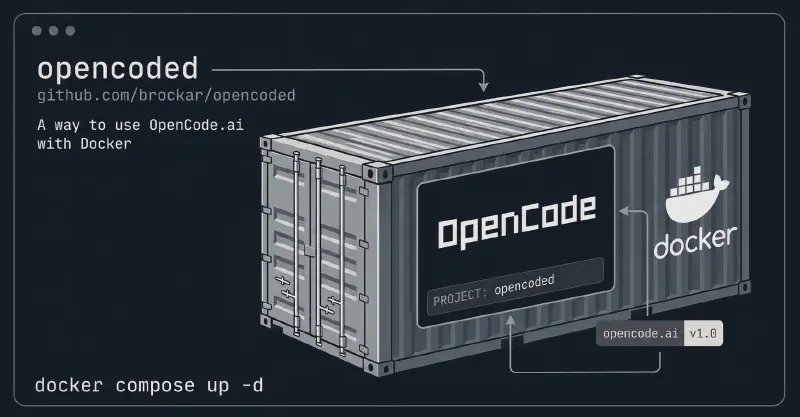
This is a guide on how I run OpenCode inside Docker for both web and terminal interfaces. If you want an isolated, reproducible environment for AI-assisted coding, this guide might be useful.
OpenCode is an AI-powered coding assistant that can run in the browser or directly in your terminal. The opencoded project wraps it in a Docker container so you can use it without installing anything locally beyond Docker.
This container supports:
- Web mode — Access the assistant through your browser on a local port.
- TUI mode — Run it directly inside your terminal.
- Multiple instances — Spin up separate containers for different projects on different ports.
- Persistent config — Keep your settings and authentication intact across restarts.
- Git integration — Mount SSH keys for seamless commits and pushes.
Available Images
The project provides two pre-built images hosted on GitHub Container Registry:
- Standard (
latest) — Based on Debian (debian:bookworm-slim). It comes pre-packaged with a complete set of utilities (git,gh,curl,jq,ripgrep, etc.) for daily coding. - Slim (
slim) — Based on Alpine (alpine:latest). It is extremely lightweight and fast, but it is minimal, meaning it might not contain all the libraries or packages you need for complex development tasks.
Prerequisites
Before getting started, make sure you have:
- Docker installed and running
- Your SSH key at
~/.ssh/id_ed25519(for git operations inside the container) - OpenCode authentication configured (see the Configuration section below)
Quick Start
Clone the repository
|
|
Use Docker Compose (Recommended)
|
|
The web interface will be available at: http://localhost:4096
Use the helper script
|
|
To run on a specific project directory:
|
|
Docker Run Examples
Web Server
|
|
Then, access the web interface at: http://localhost:4096
TUI Mode
Run OpenCode directly in your terminal:
|
|
Exit with Ctrl+C or type /exit.
Configuration
Helper Script Environment Variables
| Variable | Description | Default |
|---|---|---|
PROJECT_PATH |
Path to project directory | $(pwd) |
OPENCODE_PORT |
Host port to expose | 4096 |
UID |
User ID for file permissions | $(id -u) |
GID |
Group ID for file permissions | $(id -g) |
Volume Mounts
The container expects these mounts:
Project directory→/workspace(your project files)~/.ssh/id_ed25519→ SSH key for git operations~/.config/opencode→ OpenCode configuration~/.local/share/opencode/auth.json→ OpenCode authentication
Persist sessions
To keep your conversation history across restarts, mount the full share directory instead of just auth.json:
|
|
Mount your entire code directory
Instead of mounting a single project, you can mount your whole ~/code directory as the workspace. This lets you open any project from the web UI without restarting the container:
|
|
Then, navigate inside the UI to the specific project (e.g., /workspace/my-project).
Environment Variables
| Variable | Description | Default |
|---|---|---|
GH_TOKEN |
GitHub token (optional) | - |
OPENCODE_SERVER_USERNAME |
Username for HTTP Basic Auth (web mode) | opencode |
OPENCODE_SERVER_PASSWORD |
Password for securing the web interface | - |
Shell Functions (Recommended)
Option 1: Setup Script
Run the included script — it auto-detects your shell (zsh or bash) and configures everything for you:
|
|
Then reload your shell:
|
|
Option 2: Manual Setup
Add these functions to your ~/.zshrc or ~/.bashrc:
|
|
Then reload: source ~/.zshrc or source ~/.bashrc.
Usage
|
|
Running Multiple Instances
You can run several containers simultaneously on different ports for different projects or accounts.
|
|
Access them separately:
- Project A: http://localhost:4096
- Project B: http://localhost:4097
Customizing the Image
If you need additional packages inside the container, edit the Dockerfile and rebuild locally.
Standard image (Debian)
|
|
Slim image (Alpine)
For the slim image, edit Dockerfile.slim and use apk:
|
|
Then rebuild:
|
|
Note: Always pair
apt-get installwithrm -rf /var/lib/apt/lists/*in the sameRUNlayer to keep the image size small.
Check out the repository on GitHub to get started: brockar/opencoded. Contributions and feedback are always welcome!
